How to e-transfer from CIBC Bank to Remitbee Balance
Follow these steps to send an eTransfer from your CIBC Bank account.
Before you start: The email you send your e-Transfer from must be added and verified in RemitBee. You only need to do this once. Not verified yet? Add and verify your email first.
Step 1: Open the CIBC Mobile Banking App - Open the CIBC app on your mobile device and log in.
Step 2: Go to the "Move Money" Section - From the home screen, tap on the “Move Money” option. This will take you to the different options for transferring funds.
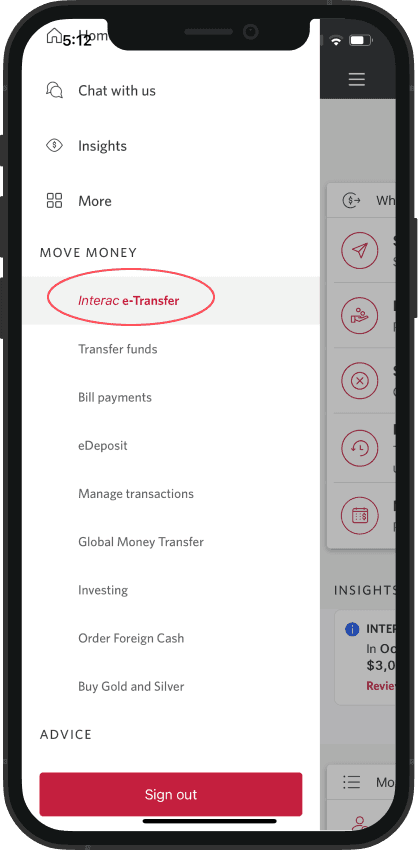
Step 3: Select "Interac e-Transfer" to Send Money - Tap on “Send Interac e-Transfer”. This option allows you to send money to an email address.
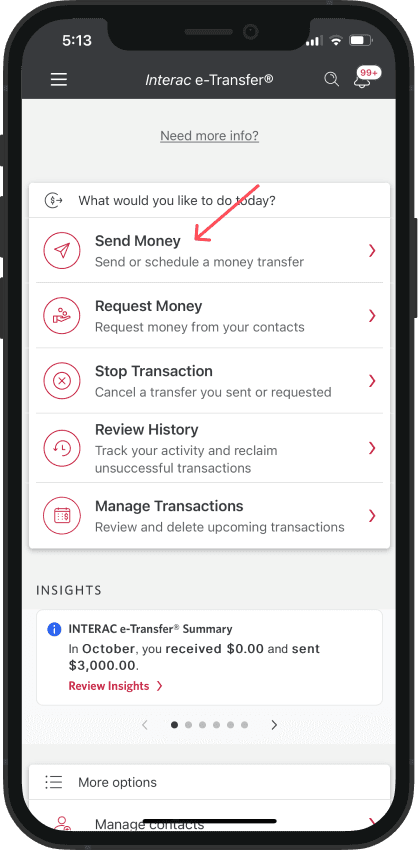
Step 4: Add the Recipient
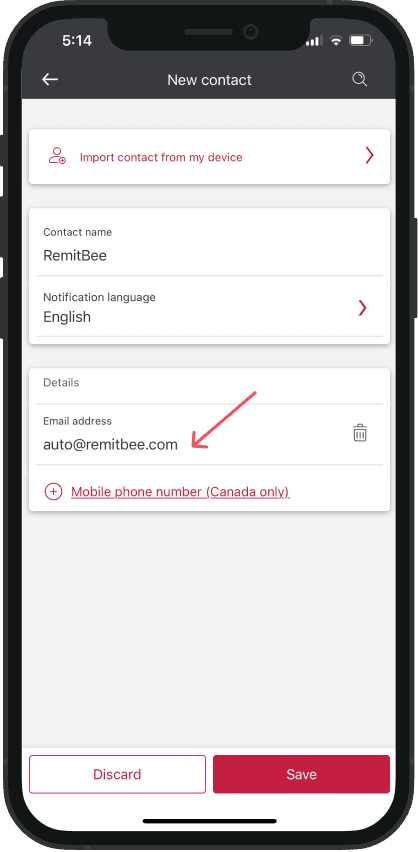
If you have not added RemitBee as a recipient before: Tap on “Add New Recipient”. Enter the email address [email protected] and Remitbee as Name.
If you have added RemitBee as a recipient before: Simply select [email protected] from your saved contacts and proceed to make a transfer.
Step 5: Enter the Amount to Transfer - Enter the amount you wish to send in the Amount field.
Step 6: Choose the Account to Send From - Select the account (e.g., chequing or savings) from which you’d like to send the funds.
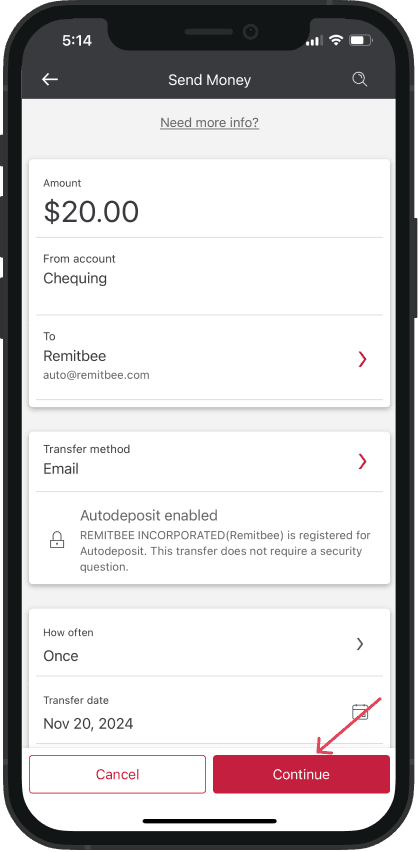
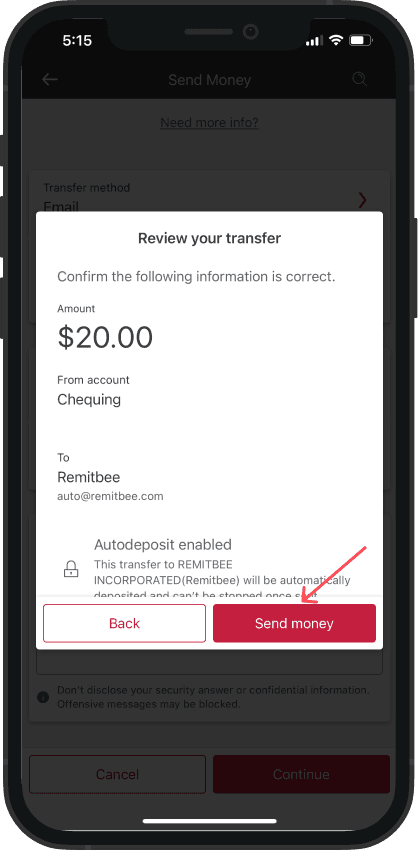
Step 7: Review Your Transfer Details - Double-check the details of your transaction, including the recipient’s email ([email protected]) and the amount.
Step 8: Complete the Transfer - Once you’ve confirmed the details, tap Send to complete the transfer. Your bank will initiate the transfer, and you’ll receive a notification confirming the transaction.