How do you change to preferred bank?
Changing your preferred bank account with RemitBee to pay for your transfers is straightforward and can be done in two ways, depending on your convenience.
Option 1: Change bank during a Money Transfer or Currency Exchange
- Initiate a new transaction: Begin by starting a new money transfer on RemitBee and follow the on-screen instructions.
- Payment methods screen: When you reach the “Select Payment Method” screen, locate and click on your current bank icon, which is typically found in the top right corner.
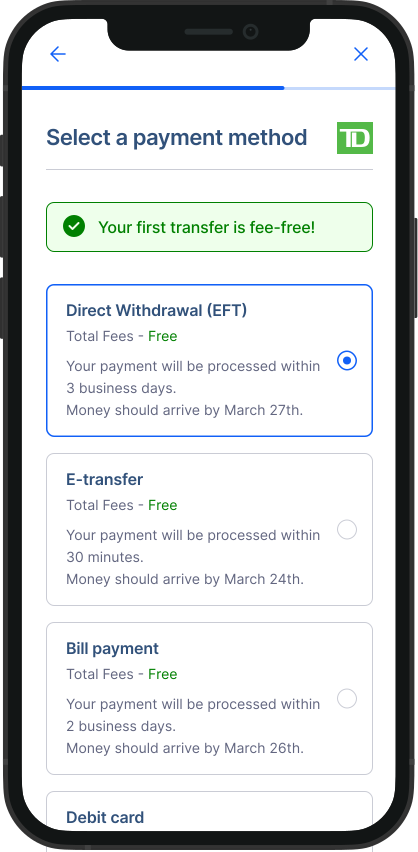
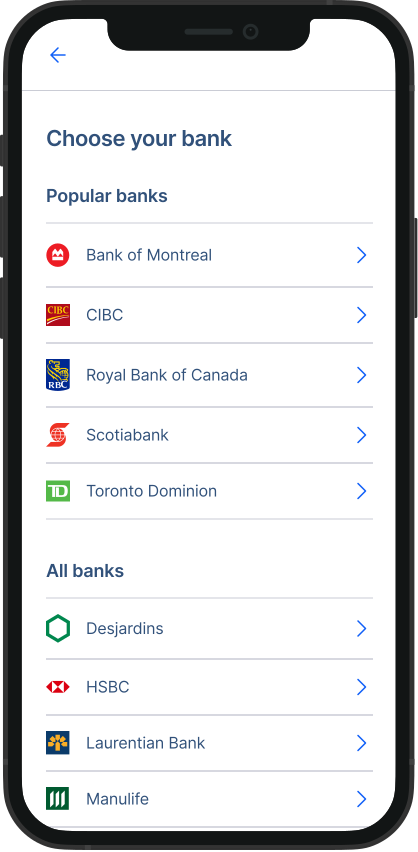
- Choose a New Bank: You’ll be presented with a list of all available banks. Select your new preferred bank from this list.
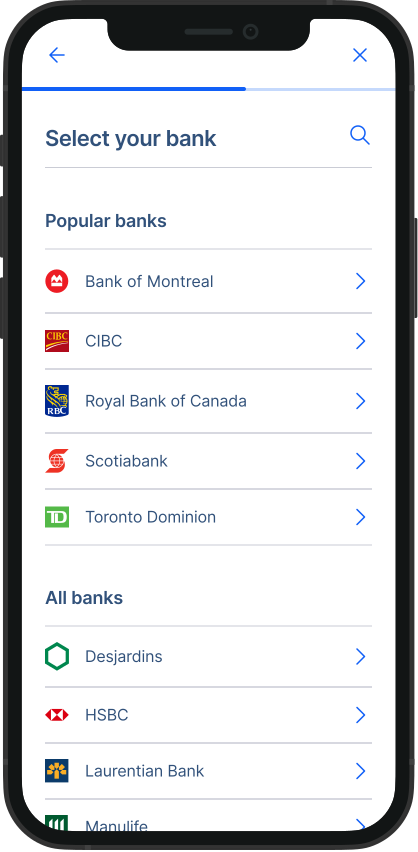
Note: The bank you select will automatically become your default bank for all future transactions, until you decide to change it again.
Option 2: Change bank through account settings
For Mobile and Apps:
Go to Account: Tap on the account button from the bottom menu on the Home screen.
Go to Settings: The secondary menu will open. From the list, tap on the “Settings”.
- Go to Payment preferences: Then from the Settings page, tap on the “Payment preferences” from the list.
- Select new bank: On this page you will see your current bank, tap on “Change” button on the right, and choose your new bank from the options.
For Desktop:
- Go to Account: Click on the Account tab located at the top right corner of your Dashboard screen. It will be marked by your name and a dropdown arrow.
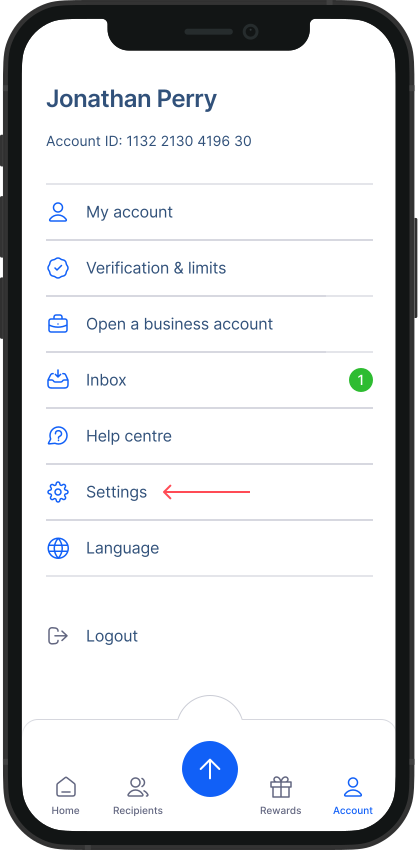
Open Settings: A secondary menu will appear, where you should click on “Settings”.
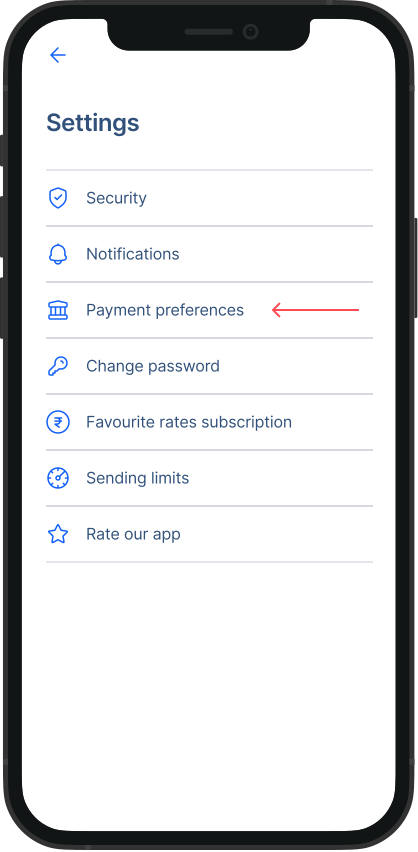
Payment preferences: Within settings, find and click on the “Payment preferences” tab.
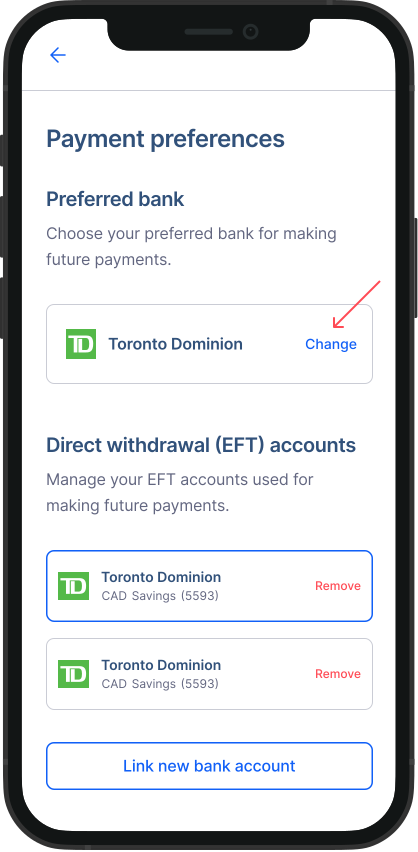
Select new bank: Your current bank icon will be displayed. Click on “Change” on the right side and then select a different bank from the provided list.
By following these steps, you can effortlessly switch to a different bank account to manage how you pay for your transfers on RemitBee. This flexibility ensures that you can always use the bank account that best suits your current needs.