How to add e transfer to CIBC to RemitBee Balance
Follow these steps to send an eTransfer from your CIBC Bank account
Step 1: Open the CIBC Mobile Banking App - Open the CIBC app on your mobile device and log in.
Step 2: Go to the "Move Money" Section - From the home screen, tap on the “Move Money” option. This will take you to the different options for transferring funds.
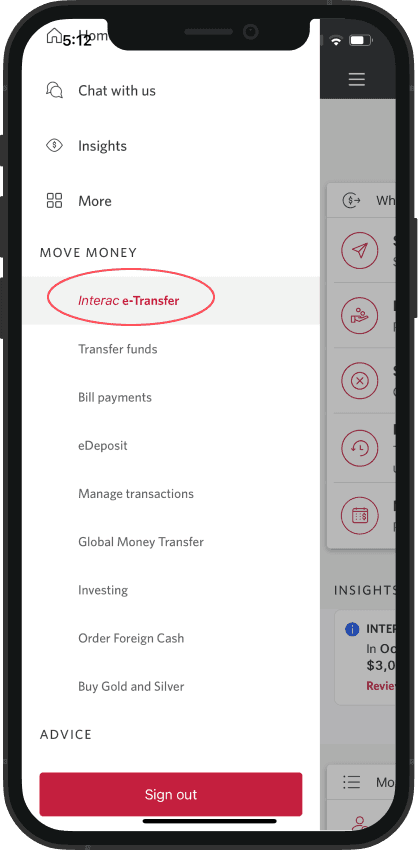
Step 3: Select "Interac e-Transfer" to Send Money - Tap on “Send Interac e-Transfer”. This option allows you to send money to an email address.
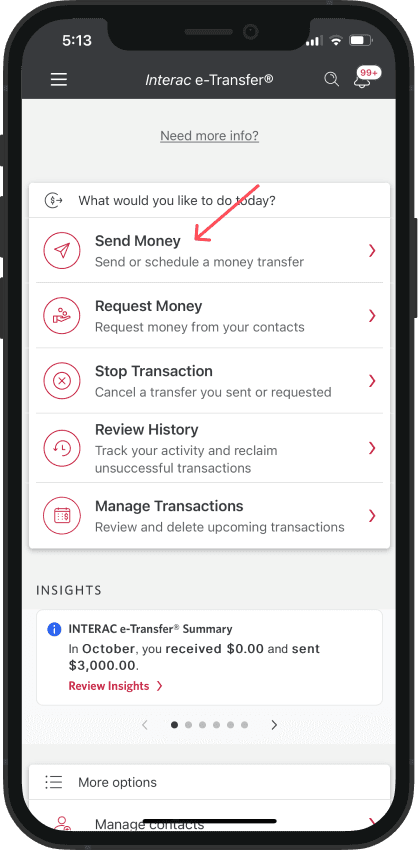
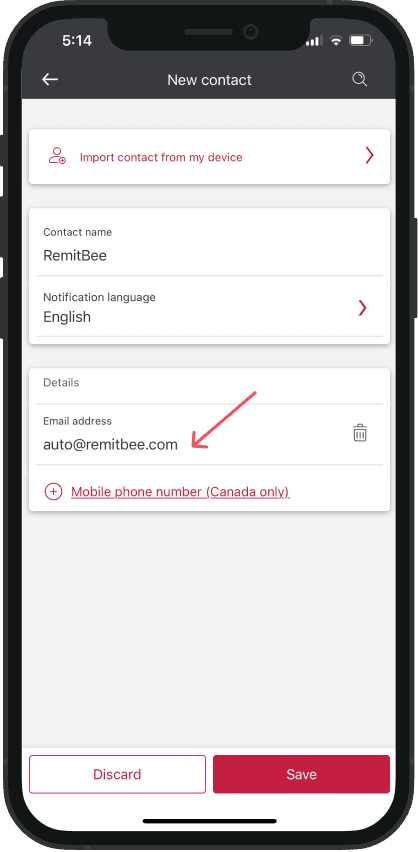
Step 4: Add the Recipient
If you have not added RemitBee as a recipient before: Tap on “Add New Recipient”. Enter the email address [email protected] and Remitbee as Name.
If you have added RemitBee as a recipient before: Simply select [email protected] from your saved contacts and proceed to make a transfer.
Step 5: Enter the Amount to Transfer - Enter the amount you wish to send in the Amount field.
Step 6: Choose the Account to Send From - Select the account (e.g., chequing or savings) from which you’d like to send the funds.
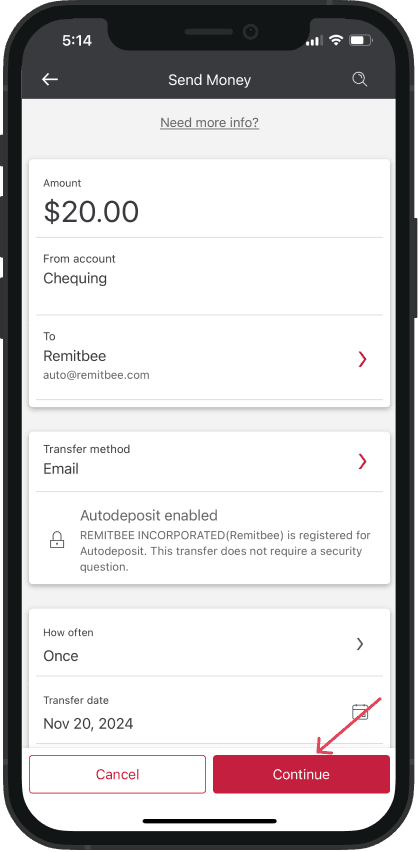
Step 7: Add a Message (important) - In the Message field, it is important to enter the email address associated with your Remitbee account. This helps ensure that the transfer is properly processed. For example, enter your RemitBee registered email, such as [email protected]
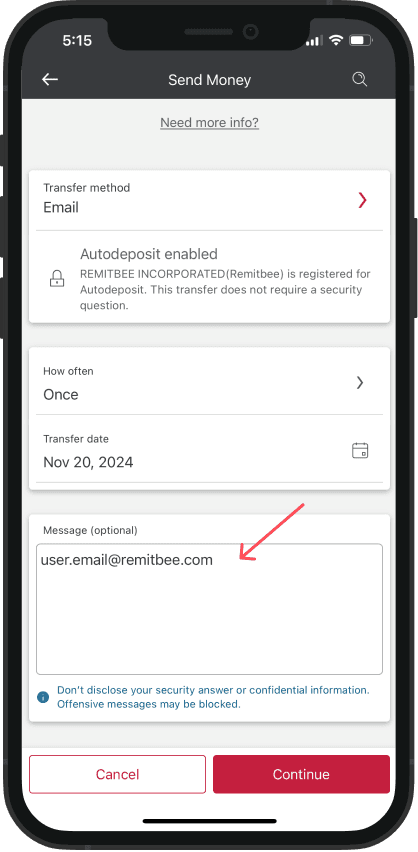
Step 8: Review Your Transfer Details - Double-check the details of your transaction, including the recipient’s email ([email protected]), the amount, and the Message (your email).
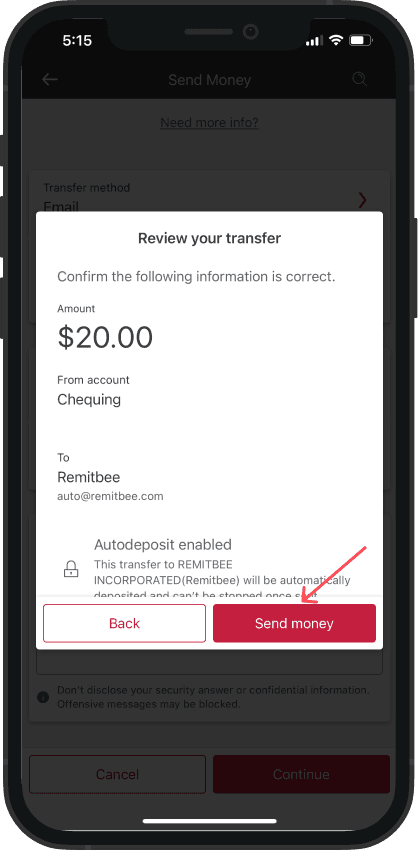
Step 9: Complete the Transfer - Once you’ve confirmed the details, tap Send to complete the transfer. Your bank will initiate the transfer, and you’ll receive a notification confirming the transaction.